
App Studio · Beta, in the trial
Build the apps your plant needs. Forms, guides, kiosk screens, live 3D.
An App Studio app reads your live data and writes back through the connections MaestroHub already has: book a work order, send a result to SAP, guide a technician through a repair, run full screen on the operator's kiosk. Describe it to the AI client you already use.
What you can build
Any app your line needs. A 3D plant is one of them.
If a person on the line needs a screen to see, record, request, decide or send something, it can be an App Studio app.
Forms that send data
A quality check, a scrap entry or a counted pallet that lands in SAP, your MES or a database, through a connection function.
WritesSOP and repair guides
Step-by-step guidance when a machine faults, with its live values and photos beside each step, and each step done recorded.
Reads and writesOperator kiosk screens
One station's own screen, full screen on the line, with the values and buttons that operator needs and nothing else.
Reads and writesRequests and work orders
A maintenance request booked as a work order in the CMMS, with its answer back on the same screen.
WritesChecklists and handovers
Start-up checklists, shift handovers and sign-offs, kept with the app and sent to the next crew.
RecordsApprovals on the line
Decide on a held change where the work happens: the person sees the data first, then approves or rejects.
WritesLive views and 3D
Live values, trends, OEE and a 3D view of the line, each value with its unit and its state.
ReadsReports and labels
A shift report to print or save as PDF, and a pallet label sent to the line's own printer.
Reads and prints
Read and write
Through what MaestroHub already connects.
An app never holds a password to SAP or a driver for a PLC. It asks MaestroHub, by name, for a connection's function, a topic or a pipeline, and MaestroHub does it as the person using the app.
 Your app
- Declared
Every write is named in the app, bound to one connection function, topic or pipeline. Anything else is refused.
- Confirmed
Writes that matter open MaestroHub's own dialog, showing exactly what will be sent, before anything goes.
- As the person, on the record
Each write runs with the operator's own permissions and lands in the audit log with the app, its version and the person.
Apps from the demo plants LiveBeta, in the trial
From a 3D twin of the line to a work order request.
Click a station, see everything about it
OP20, the CNC finish machining station: its step and the part on it, shift OEE and output, ideal cycle, energy by state, the operator, the tool's remaining life, and the last 30 minutes of its signals.
What it uses from MaestroHub
- Live values
- History
- 3D scene kit
From MaestroHub's showcase, on the Digital Factory Simulator's brake caliper line.
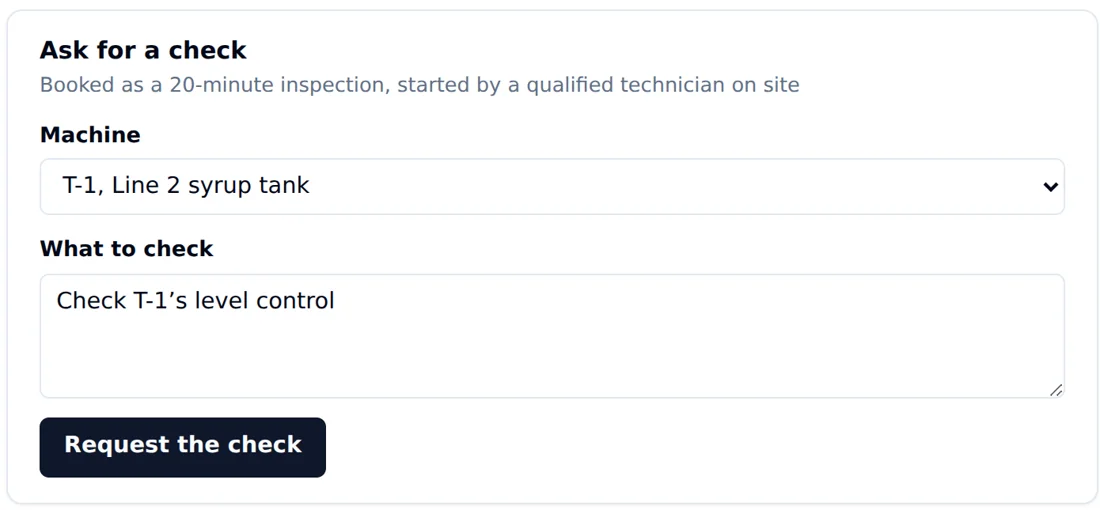
Ask for a check from the line
Pick the machine, say what to check, and the plant's maintenance system books it as a work order through a MaestroHub connection. The answer comes back to the same screen.
What it uses from MaestroHub
- Connection functions
- CMMS work orders
Ships with the built-in demo plant.
What the next shift must know
The handover for the next crew, with who is on shift taken from the plant's HR system, and earlier handovers kept for the record.
What it uses from MaestroHub
- HR connection
- App storage
Ships with the built-in demo plant.
Sort alarms by the people who answer them
MaestroHub's own alarms next to the MES alarm floods. The crew acknowledges what needs a person, marks what is noise, and keeps a note.
What it uses from MaestroHub
- Alarms
- MES connection
- App storage
Ships with the built-in demo plant.
See what feeds each station
Switch the twin to its Connections view and each station is drawn with its links to the systems that feed it, over the line's live OEE, good and scrap parts, OEE loss, energy and cost per part.
What it uses from MaestroHub
- Live values
- Connections
- 3D scene kit
From MaestroHub's showcase, on the Digital Factory Simulator's brake caliper line.
Line 2 energy, built by an AI client
Power now, the peak of the last 30 minutes and a chart from stored history, with units from the plant's meanings. Built over MaestroHub's MCP server by an AI client, then approved by a person.
What it uses from MaestroHub
- Live values
- History
- Meanings and units
Built in a trial with the demo plant.
Be honest about it
Writing the screen was never the hard part.
Today a developer, or an AI client such as Claude Code or Cursor, writes a working screen in minutes. You do not need MaestroHub for that.
What you need before that screen goes on the line is everything in this list. Build it for each screen, and every screen becomes a small product the plant has to own. Build it once, in the platform, and every screen gets it.
What a plant screen needsApp Studio
- A place to run, patched and backed upInside MaestroHub
- An address and a certificateIts own link
- Sign-in and single sign-onYours, already
- Who may open it, who may press whatRoles and shares
- Credentials for the dataNone, acts as the viewer
- A record of every writeAudit log
- Releases, rollback, an off switchBuilt in
- The code, when its author moves onKept in Git
Why it lives inside MaestroHub
The more MaestroHub holds, the more every app can do.
The 3D line above brings no drivers, database passwords or service accounts. It binds to what MaestroHub already has, by name. Every connection, function, pipeline and meaning you add to MaestroHub is something every app can use the same day.
- 01Data
Live values and history from every machine in one namespace.
- 02Meanings
Units, ranges and what each value is, so an app labels it right.
- 03Connections and functions
Reads and writes to PLCs, databases and business systems, each a named function.
- 04Pipelines
Work that runs on the server, on a schedule or a trigger, which an app can start.
- 05People
Roles, groups and single sign-on, which decide what each viewer may do.
What App Studio does for you
Six things nobody wants to build for every screen.
One look for every app
Every app is built from MaestroHub's own UI kit and its 3D scene kit, in light and dark. It works like a brand book your AI client follows, so an app from one team looks like an app from another.
Find an app before you build one
One catalogue per workspace, searched by the job to be done. People see the apps they cannot open yet, and ask for access instead of building a copy.
Releases a person approves
An AI client changes a draft, never the live app. A person reviews what the app may do and what it reads, then approves. Rollback and an off switch are one click.
Git built in
Every app is a Git repository MaestroHub keeps: every checkpoint and every version. Mirror published versions to your own Git server.
Governance without extra work
An app has no account of its own. It acts as the person using it, so a topic or function they may not use, the app may not use either. Every write is in the audit log.
Straight to the screen
Every app has its own link that opens it full screen, for a station, a tablet or a wall. A screen nobody signs in to is paired as a read-only display.
How it works
From an idea to the wall screen, in five steps.
You build with the AI client you already use. It connects with a token you create, acts as you, and never with more than that token allows.
- Step 1
Connect your AI client
Pick Apps, copy the settings for Claude Code, Cursor or another client, and create its token.
- Step 2
Describe the app
Your client builds the draft. The preview shows it with live plant data as it works.
- Step 3
A person approves
The review shows who asked, what the app may do and every topic it reads.
- Step 4
People find it
It appears in Apps for everyone who may open it. Others can ask for access.
- Step 5
On the line
Open its link full screen on a station, or pair a wall screen to it.
Or start from what ships with it
Templates and examples, ready to copy.
Start from a plant in 3D, live charts, an incident report, a shift handover, an alarms board, an approval inbox, an energy monitor or a line operator console. Open an example to see it running, then make it yours.
Where it stands
What you get now, and what comes next.
- LiveBeta, in the trial
App Studio
Build with your own AI client, everything on this page included.
- Coming soon
Maestro as the builder
Describe an app to Maestro inside MaestroHub, with no AI client to set up.
- Future
Two-way Git
Start an app from a repository and bring changes made there back in.
- Future
More release controls
A second approver for a release, and unpublishing a live app.
Questions
What is App Studio?
App Studio lets people build the apps their plant needs, inside MaestroHub: forms that send data to SAP or the MES, SOP and repair guides, checklists and handovers, operator kiosk screens, live views and 3D plants. You describe the app to your own AI client, which builds it through MaestroHub's MCP server; a person approves each release, and the app runs inside MaestroHub with each viewer's own permissions. App Studio is in Beta.
Which AI clients can build apps?
Any MCP client: Claude Code, Claude Desktop, Cursor, VS Code and others. The Connect an AI client page writes its settings and the token it needs. The client acts as the person who issued the token, never with more than that token allows. Maestro, MaestroHub's own assistant, comes as the builder in a later release.
Can an app send data to SAP, the MES or a machine?
Yes, through the connections MaestroHub already has. An app calls a connection's function by name, for example Send IDoc on an SAP IDoc connection, a write to a database, or a write to a PLC tag, and only as the person using it, with their permissions. Each write is declared in the app, writes that matter are confirmed in MaestroHub's own dialog showing exactly what will be sent, and every write is in the audit log.
Can the AI client publish an app by itself?
No. A client changes a draft and can ask for a release. A person who may publish reviews what the app may do and what it reads, and approves or rejects it.
How do I try it?
App Studio is included in the MaestroHub trial, together with a built-in demo plant and its showcase apps. On a paid licence, App Studio is an add-on.
Screens from a MaestroHub trial with the built-in Trabzon demo plant. People and values are examples. App Studio is Beta; names and steps may change.
Open the 3D plant in your own trial today
App Studio is in the MaestroHub trial, with a built-in demo plant that sends live values from the first minute and the showcase apps on this page. Then connect your AI client and describe the screen your line needs.